Using Visionflex carts and medical devices with Video Call
If your health service uses medical carts, these can easily be used with healthdirect Video Call for video telehealth consultations. Carts can be set up with the required medical devices and cameras required for the clinic workflows and allow for ease of movement between patients.
Click on the below examples for more information:
Visionflex carts and medical devices
Using Video Call with a Visionflex cart is simple, whether your service has a Video Call clinic or where you are receiving a link from a health service or virtual emergency clinic. Click on the video links below to see how to use the Visionflex cart with Video Call in these 3 scenarios:
- Using Video Call with a Visionflex cart for staff with Video Call accounts
- Using Video Call with a Visionflex Cart to attend a virtual emergency clinic appointment
- Using Video Call with a Visionflex cart with a link sent by a health service
Medical device examples
There are various workflows and use cases for sharing USB and Bluetooth Visionflex medical devices, which can be used in a Video Call for health examinations. See below for more information.
General Examination Camera HD
This medical imaging device allows the operator to perform a wide range of examinations while the camera is shared in a Video Call. A health service provider, such as a GP or nurse, who is with a patient can share the camera into a Video Call with a specialist in another location, to help with diagnosis and treatment guidance.
The General Examination Camera (GEIS) has a wide range of clinical uses, some which are outlined below:
|
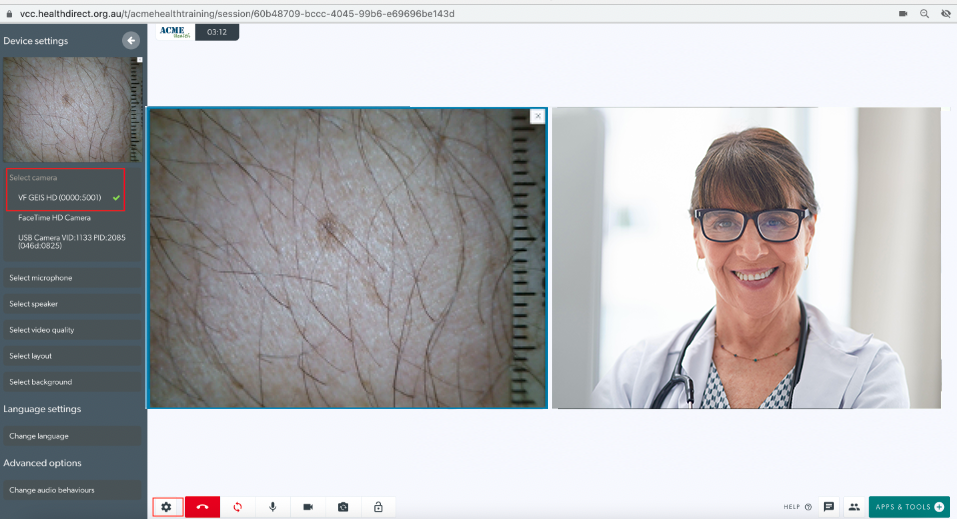
1. Skin Examination using switch camera
Set the Video Quality to Full HD for a full high definition image. The remote specialist (in the right image) is viewing the patient's skin clearly. |
 |
|
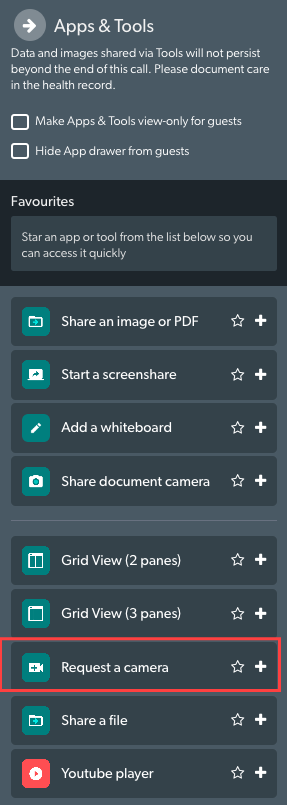
2. Skin image using Request a camera
Please note that the doctor/specialist viewing the remote camera can select High as the Video Quality for their view, using the settings under the shared camera. |
|
|
3. Skin examination using a wound measurement stick This optional attachment comes with the device and measures the size of a wound for treatment and comparison. |
 |
|
4. Eye examination using request camera In this example, specialist at bottom left has requested a camera. The health service provider with the patient has selected the GEIS camera and the examination has begun. Please note: an accessory has been attached to the hood of the camera, showing distance in millimetres for showing any size changes. |
 |
|
5. Throat examination using request camera This example using the General Examination Camera is showing a throat examination shared into the call. A tongue depressor accessory has been attached to the GEIS camera for this examination. |
 |
Video examination glasses HD
The Video Examination Glasses are an excellent way to give a doctor or specialist in another location a view of what the wearer is seeing.
This has many clinical use cases, including a nurse treating a remote patient with the assistance of a remote specialist, for example. This assists with remote diagnosis and live treatment recommendations. The example below shows the Video Glasses shared into the call using the Request a camera feature. Please note, the Video Glasses could also be shared in the call by switching camera.
| The clinician with the patient is shown in the right screen, wearing the Video Glasses. She is preparing to share the glasses camera into the call so the specialist can see what she sees. |  |
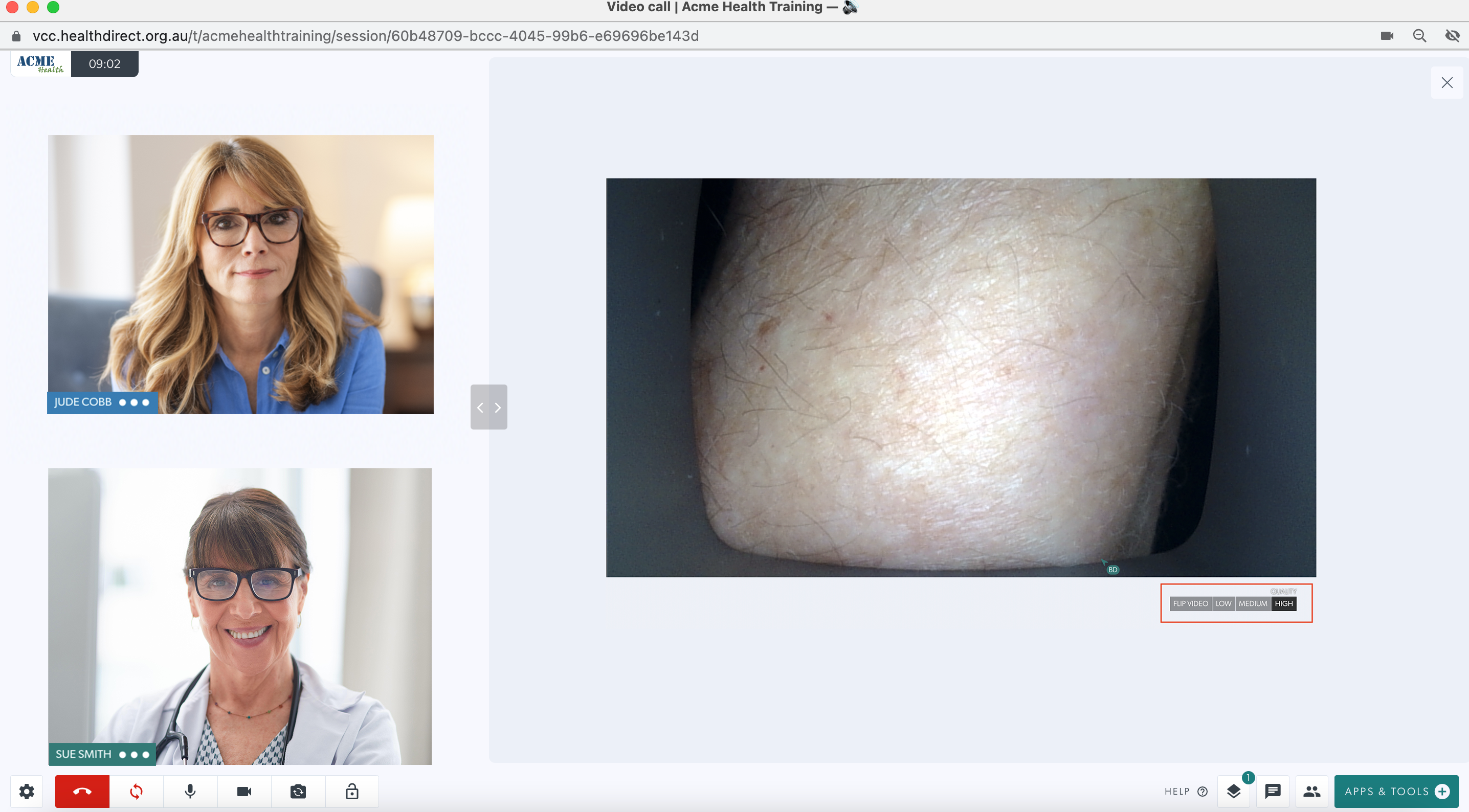
| The specialist (shown at the left of the screen) opens Apps & Tools and clicks on Request a camera. |  |
| The health service provider with the patient can select the requested camera in their screen. To do this, click on Select a camera to share. An overlay will appear showing the available cameras. Select the desired camera to share it into the call. |
 |
| Here, the Video Glasses camera has been selected and the specialist can see what the wearer sees. In this example the health service provider wearing the glasses is looking at the patient's hands. |
 |
Digital Stethoscope
Please note this functionality is under testing with Video Call and will work in all clinics soon.
Connecting a digital stethoscope in a Video Call allows a remote specialist to listen to clear, high definition audio of the patient's heartbeat. It involves switching your microphone to the stethoscope, once it is plugged in and ready. Open Settings during a call and select the stethoscope from your available microphone options - and remember to switch back to you preferred main microphone once the stethoscope is no longer required in the call. Click here for more information.
| This image shows the Thinklabs digital stethoscope, currently being tested for integration for use with Video Call for real-time remote patient monitoring. |  |
| This image shows a Riester digital stethoscope, currently being tested for integration for use with Video Call for real-time remote patient monitoring. | 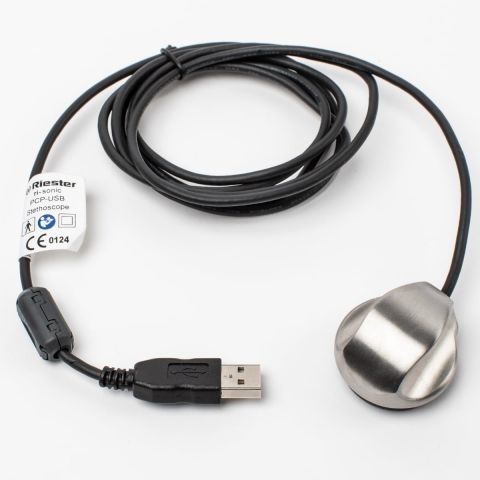 |
Portable Digital Otoscope
The Portable Digital Otoscope is optimised for inspection of the auricle, the external auditory canal and the eardrum.
| Here, the Portable Digital Otoscope is being used to examine the ear canal during a Video Call consultation. |  |
Ultrasound
For detailed information about sharing an ultrasound image using Visionflex, please click here.
HPA medical carts and peripherals
HPA carts meet many health service needs, from technology and medication management to video telehealth, ICU, and tablet applications. These modular carts feature easily interchangeable components, allowing them to seamlessly adapt to any workflow or requirement. They can also be repurposed as your needs evolve. These carts can be paired with with hot-swappable batteries for ease of movement.
The cart can be used with a range of medical devices, to assist with remote diagnosis and review. Click here to find out more about compatible medical devices.
The following video demonstrates the use of Video Call on an HPA cart:
Table of Contents