Contact Us

If you still have questions or prefer to get help directly from an agent, please submit a request.
We'll get back to you as soon as possible.

Please fill out the contact form below and we will reply as soon as possible.

Topics

Clinicians Administrators Patients Technical Service Updates About

    Need Help?

  • Contact

Languages

English (US) keyboard_arrow_down
RO Romanian
CK kurdish
MS Malaysian
TH Thai
RU Russian
HU Hungarian
SR Serbian
SW Swahili
CA Catalan
DA Danish
AF Dari
SE Swedish
IL Hebrew
MO Mongolian
UA Ukrainian
PL Polish
FI Finnish
TH Thai (Thailand)
SK Slovak
KR Korean
CN Chinese
BE Belarusian
LT Lithuanian
MY Myanmar (Burmese)
GE Georgian
ET Estonian
IN Hindi
SR Serbian Latin
KM Cambodia (Khmer)
SA Arabic
YU Cantonese
SO Somali
LV Latvian
FR French
ES Spanish
BS Bosnian
BR Portuguese (Brazil)
VI Vietnamese
NL Dutch
BE Dutch (Belgium)
SW Finnish Swedish
IT Italian
ID Indonesian
AM Amharic
UZ Uzbek
GR Greek
CS Czech
HK Chinese (HK)
N Traditional Chinese
BG Bulgarian
PT Portuguese
CM Mandarin
TR Turkish
AZ Azerbaijani
IS Icelandic
JP Japanese
DE German
US English (US)
NO Norwegian
HR Croatian
UR Pakistan (Urdu)
LO Laos (Lao)
BN Bangladesh (Bengali)

    Topics

  • Clinicians
    • Getting Started
      • Getting started with Video Call
      • Getting started with Video Call in four easy steps
      • Guides to download and email or print
      • Videos to share or embed on your website
    • What Do I Need?
      • What you need to make a Video Call
      • Video Call do's and don'ts
      • Medicare information
      • Who to contact for support and advice
      • Web browser requirements
      • Equipment list recommendations
      • Video Call via Satellite
      • Noise Cancelling Software
      • Equipment for a Group Setting
    • Conduct a consultation
      • Conduct a call in the waiting area
        • Create account and sign in to Video Call
        • Shortcuts for Video Call sign in
        • Sign in Using Single Sign-On (SSO)
        • Join a Video Call and consult with your patient/client
        • Start a New Video Call in the clinic waiting area
        • Conduct Group Calls using Video Call
        • How to access your Video Call consultation
        • Clinic Waiting Area in call on-hold function
        • Your account profile and settings
        • View my roles and permissions
        • My clinics summary
        • Adding a SIP participant to a healthdirect Video Call
        • Interpreter services and workflows
        • Call quality rating
        • Sharing presentation slide-shows
        • Tabbing between the call screen and waiting area
        • Call Activity view
        • Clinic Dashboard
        • Workflow options for conducting a Video Call consultation
        • Embedded Call View
        • Select your required camera for Video Call
        • Offline status for waiting callers
      • Call Screen
        • The Video Call screen
        • Call Screen layout
        • Call screen buttons
        • Hover control buttons in the Call Screen
        • Call screen settings
        • Picture in Picture (PiP)
        • Changing your background in Video Call
        • Using the Call Manager during a call
        • Change video quality settings in a call
        • Add live captions to your Video Call
        • Adding a phone participant to a Video Call
        • Lock/Unlock a Video Call
        • Indication when a participant feed is not available
        • Audio quality settings
        • Take notes during a Video Call
        • Apple Virtual backgrounds in macOS Sequoia
      • Using Meeting, Group and User rooms
        • Organisational structure within Video Call
        • Waiting areas, meeting rooms and group rooms: what's the difference?
        • Using Video Call Meeting rooms
        • Using Video Call User Rooms
    • Waiting area
      • Waiting Area
        • The Clinic Waiting area explained
        • Notifications to callers in the waiting area
        • Transfer a call to another clinic
        • Add participants to your current Video Call
        • Waiting Area caller information
        • Searching, customisation, sorting and filtering in the waiting area
        • Editing Entry Field columns in the Waiting Area
        • Clinic name and Left Hand Side menu
        • How to receive waiting area alerts
        • Waiting Area Right Hand Side column
      • Share clinic link
        • Share waiting area link via email or SMS
        • Information to provide to your patients
        • Video Call QR Code generator for clinic links
        • Create an accessible patient link
      • Waiting Area Alerts
        • How to receive waiting area alerts
        • Enable/disable desktop notifications for all your clinics
      • Caller entry fields
        • The Clinic Waiting area explained
    • Apps & Tools
      • Video Call Apps & Tools - share resources
      • Apps & Tools Resource Libraries
      • Using the Resource Toolbar with Apps & Tools
      • Video Call Apps
      • Virtual Forms application
      • Patient Consult Summary
      • Services on Demand application
      • Far end camera control application
      • Add live captions to your Video Call
      • Add a YouTube video to your call
      • Annotating over a shared medical device
    • Remote Vitals Application
      • Remote Vitals Application home page
      • Pulse Oximeter remote vitals
      • ECG Remote Vitals
      • Spirometer Remote Vitals
      • Thermometer Remote Vitals
      • Blood pressure remote patient monitoring
      • Digital Scales Remote Vitals
      • Patient information for Remote Vitals application
      • Compatible medical devices
      • Blood Glucose Remote Vitals
      • Parsys Telemedicine Station
    • Training
      • Video Call Training sessions and videos
      • Training information for Team Members
      • Video Call knowledge quizzes
    • Pre-call Test
      • Conduct a pre-call test
      • Allowing camera and microphone access for Video Call
    • Workflows
      • Interpreter services and workflows
      • Video Call workflow examples
    • Primary Health Care
      • Interested in healthdirect Video Call?
      • Using healthdirect Video Call in General Practice
      • Technology and troubleshooting
      • Video Call workflow examples
      • Other useful resources
      • Video Call Training sessions and videos
    • Video Call in Aged Care
      • Introducing video telehealth to your Aged Care service
      • Getting Started with healthdirect Video Call - RACH
      • Using healthdirect Video Call
      • RACH Technology and Trouble Shooting
      • Useful resources for RACH staff
      • Aged Care clinic administration
      • Using medical carts with Video Call
  • Administrators
    • Organisation Administration
      • Configure your organisation call interface
      • Add and manage organisation administrators, coordinators and reporters
      • Organisation Information configuration
      • My Organisations summary
      • Create and delete clinics within an organisation
      • Organisation reporting configuration
      • Using a Custom URL for your health service
      • Jira Cloud Service Desk
      • Joining a call organisation configuration
      • Organisation custom waiting experience configuration
      • Video Call Savings Calculator
    • Clinic Administration
      • Clinic Admin configuration options
      • Configure your clinic call interface
      • Configure the clinic waiting area
      • Create and delete meeting rooms and group rooms
      • Configure your basic Clinic settings
      • Configure the call quality settings for your clinic
      • Configure the clinic Waiting Experience
      • Customise your Short URL for your clinic
      • Joining a call configuration options
      • Create templates for room email invitations
      • Information to provide to your patients
      • Share waiting area link via email or SMS
      • healthdirect Video Call integration with EMR systems
      • How to skip the second ‘Start Video Call’ page
      • Devolved Local Recording
      • Integrate Video Call into your clinic workflow
      • Waiting Area Consent
      • Additional Integration methods
      • Training page for Clinic Clerks
      • New Feature and Improvement requests
      • Patient Entry Points And Website Buttons
      • Video call Message Hub
    • Manage Team Members
      • Add and manage team members
      • Bulk import process for user accounts
      • View a summary of all users in your organisation
      • Video Call roles and permissions
    • Video Call Apps
      • Video Call Apps
      • Configuring Post Call Links
      • Video Call App Marketplace
      • healthdirect Video Call Payment Gateway
      • Services on Demand application
      • Sound Application
      • Patient Consult Summary
    • Reports
      • Organisation reports
      • Clinic reports
      • Qlik Reporting Tool
    • Patient Flyers and Entry Points
      • Create an accessible patient link
      • Patient appointment flyer with QR Code
      • Video Call QR Code generator for clinic links
  • Patients
    • How to attend a consultation (for patients)
    • Allowing camera and microphone access for Video Call
    • Video Call tips for Patients
    • Video Call control buttons on your mobile device
    • Turning on Do Not Disturb on your phone
    • Using iOS devices to participate in a Video Call
    • Apple Reactions on iOS and MacOS devices
    • Message for callers experiencing internet issues while waiting
    • Patient information for Remote Vitals application
    • Translating Video Call patient screens into other languages
    • Patient guide for attending a consultation
    • Video Call control buttons on your mobile device
    • Share an Image or PDF on a mobile device
    • Take and share a photo on a mobile device
  • Technical
    • Technical Basics
      • Devices and operating system requirements
      • Enable and disable web browsers saving your passwords
      • Bandwidth and data usage
      • Adjust your microphone volume
      • Video Call performance vs other platforms
      • Privacy, Security and Scalability
      • Known issues and limitations
      • Unplanned system outage notifications
      • Essential 8 Maturity Model
      • Select your required microphone and speakers for Video Call
    • Troubleshooting
      • Troubleshooting Guide
      • Troubleshooting: Browser issues when signing in
      • Troubleshooting audio and video issues during a call
      • Internet connection requirements
      • Troubleshooting: Issues identified in a pre-call test
      • Troubleshooting pre-call test internet quality issues
      • Allowing camera and microphone access for Video Call
    • For IT
      • Video Call performance vs other platforms
      • Privacy, Security and Scalability
      • Unplanned system outage notifications
      • Network basics for Video Call
      • Media pathways for Video Call
      • Troubleshooting Video Call Connection Errors
      • Whitelisting Healthdirect Video Call
      • Integrating Video Call into your organisation's SSO Process
      • Video Call via Satellite
      • Webhooks and API integration with Video Call
    • Compatible devices
      • Devices and operating system requirements
      • Compatible medical devices
      • Equipment list recommendations
      • Examination cameras and scopes
      • Vision Glasses
      • Ultrasound image sharing
      • How to select a scope or camera in a Video Call
      • Digital stethoscopes
      • Annotating over a shared medical device
  • Service Updates
    • Coming Soon
      • Coming Soon to healthdirect Video Call
    • Bulletins
      • healthdirect Video Call bulletin links
    • Live Updates
      • Video Call status page
      • Video Call live updates
      • New in this release
    • Video Call Priorities
      • Healthdirect Video Call Priorities
  • About Video Call
    • About
      • Using healthdirect Video Call in General Practice
      • Video Call access for Primary Health Services
      • What is Healthdirect Video Call?
      • How Video Call is different from traditional video conferencing platforms
    • Articles and Case Studies
      • Use Cases, Articles and Reports home page
      • Use case examples of organisations using Video Call
      • Articles, Social Media Posts and Research Projects
      • Healthdirect Australia reports featuring Video Call
      • Primary Health Network (PHN) information regarding Video Call
      • Video Call use case scenarios
    • Access
      • Using Video Call in private practice
      • Video Call access for Primary Health Services
      • Need a Video Call account?
      • Video Call jurisdiction lead contact information
    • Policies
      • Platform Terms of Use - Signed-in users
      • Cookie policy
      • Platform Terms of Use - Callers and Guests
left_panel_close
Homearrow_forward_ios Cliniciansarrow_forward_ios Video Call in Aged Care

Using medical carts with Video Call

Video Call is compatible with a range of medical carts and devices


If your health service uses medical carts, these can easily be used with healthdirect Video Call for video telehealth consultations. Carts can be set up with the required medical devices and cameras required for the clinic workflows and allow for ease of movement between patients.

Click on the below examples for more information:

Visionflex carts and medical devices

Using Video Call with a Visionflex cart is simple, whether your service has a Video Call clinic or where you are receiving a link from a health service or virtual emergency clinic. Click on the video links below to see how to use the Visionflex cart with Video Call in these 3 scenarios:

  • Using Video Call with a Visionflex cart for staff with Video Call accounts
  • Using Video Call with a Visionflex Cart to attend a virtual emergency clinic appointment
  • Using Video Call with a Visionflex cart with a link sent by a health service


Medical device examples

There are various workflows and use cases for sharing USB and Bluetooth Visionflex medical devices, which can be used in a Video Call for health examinations. See below for more information.

General Examination Camera HD

This medical imaging device allows the operator to perform a wide range of examinations while the camera is shared in a Video Call. A health service provider, such as a GP or nurse, who is with a patient can share the camera into a Video Call with a specialist in another location, to help with diagnosis and treatment guidance.

The General Examination Camera (GEIS) has a wide range of clinical uses, some which are outlined below:

1. Skin Examination using switch camera 

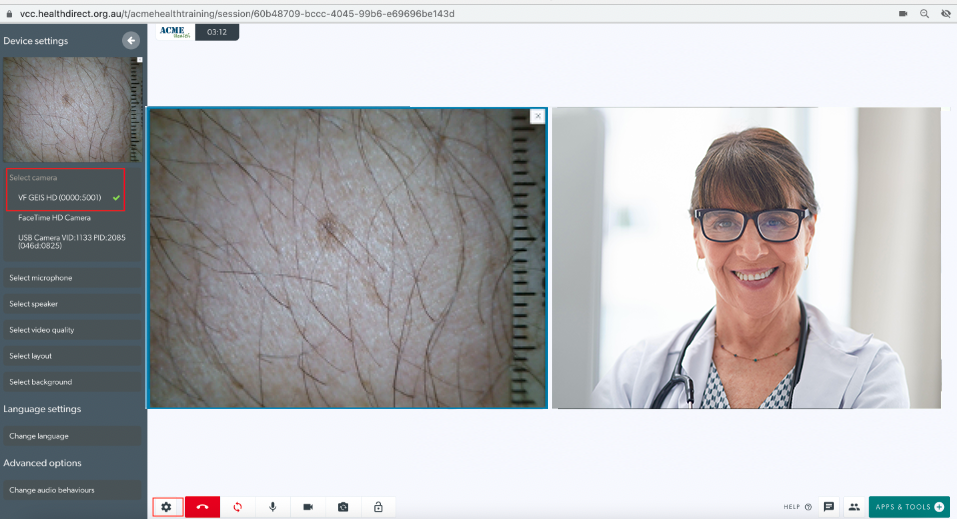
A health service provider with a patient in a Video Call with another doctor or specialist, can switch their camera to the examination camera in the call. 

In this example the health service provider with the patient has switched their main camera to the examination camera. 

To do this:

  • Open Settings and look under Select camera. 
  • Choose the examination camera to switch to this as your main camera in the call.

Set the Video Quality to Full HD for a full high definition image. The remote specialist (in the right image) is viewing the patient's skin clearly. 

See information above regarding the various ways you can share a scope or camera into a Video Call.

2. Skin image using Request a camera 


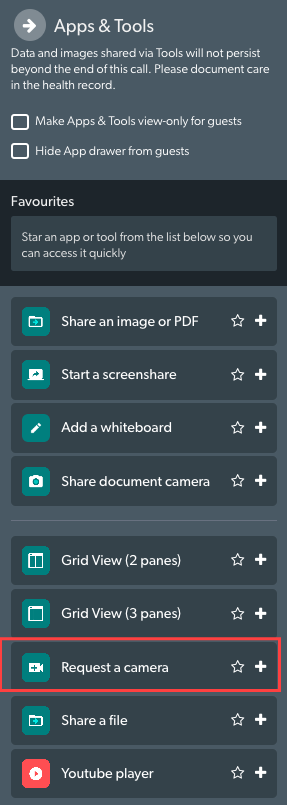
To request a camera:

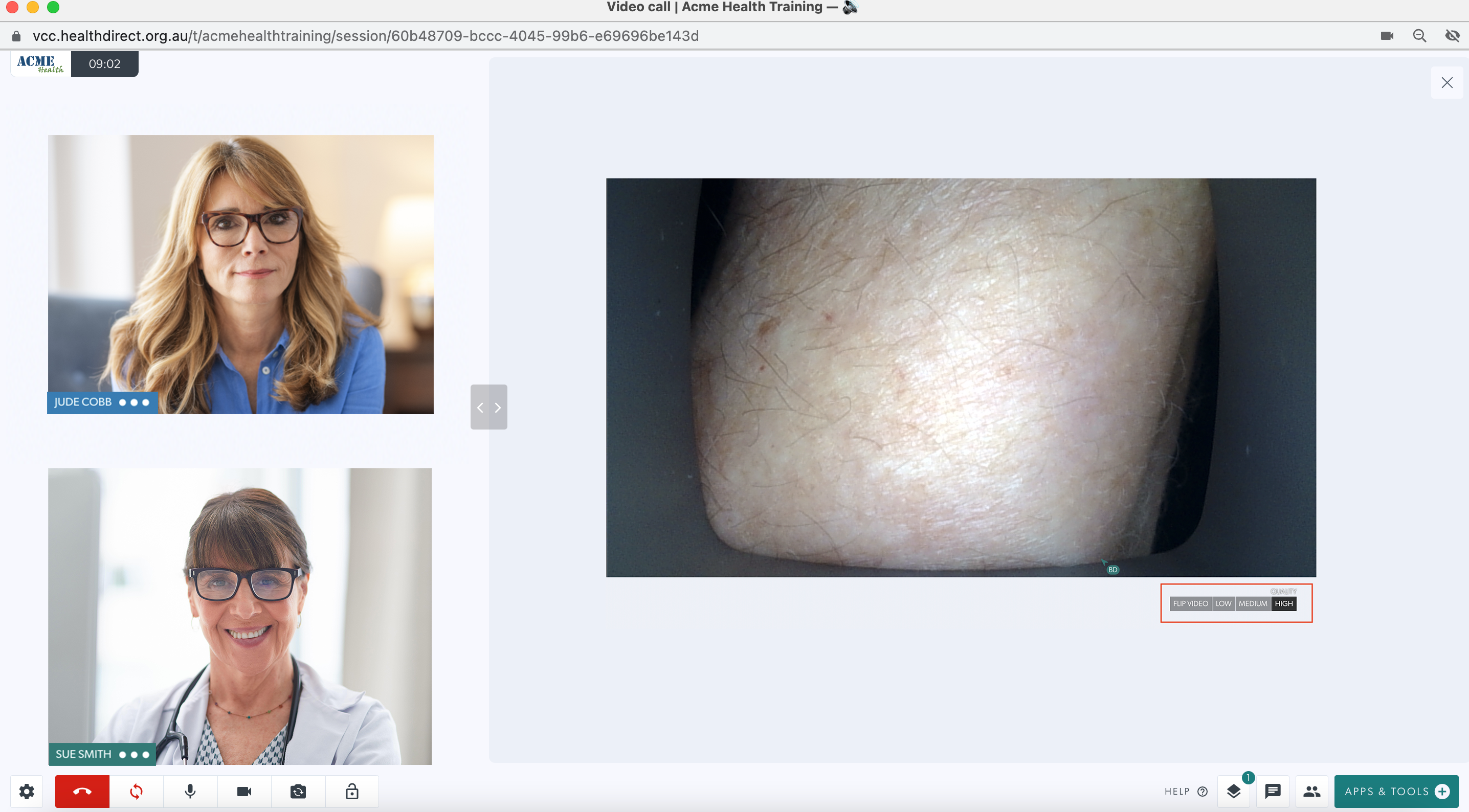
  • Go to Apps & Tools and select Request a camera (top image).
  • Wait for the requested camera to be selected by the health service provider who is with the patient. It will then be shared into the call (bottom image).

Please note that the doctor/specialist viewing the remote camera can select High as the Video Quality for their view, using the settings under the shared camera. 


3. Skin examination using a wound measurement stick 

This optional attachment comes with the device and measures the size of a wound for treatment and comparison. 


4. Eye examination using request camera 

In this example, specialist at bottom left has requested a camera. The health service provider with the patient has selected the GEIS camera and the examination has begun. 

Please note: an accessory has been attached to the hood of the camera, showing distance in millimetres for showing any size changes.
5. Throat examination using request camera 

This example using the General Examination Camera is showing a throat examination shared into the call. 

A tongue depressor accessory has been attached to the GEIS camera for this examination.

Video examination glasses HD

The Video Examination Glasses are an excellent way to give a doctor or specialist in another location a view of what the wearer is seeing. 
This has many clinical use cases, including a nurse treating a remote patient with the assistance of a remote specialist, for example. This assists with remote diagnosis and live treatment recommendations. The example below shows the Video Glasses shared into the call using the Request a camera feature. Please note, the Video Glasses could also be shared in the call by switching camera.

The clinician with the patient is shown in the right screen, wearing the Video Glasses. She is preparing to share the glasses camera into the call so the specialist can see what she sees.
The specialist (shown at the left of the screen) opens Apps & Tools and clicks on Request a camera. 
The health service provider with the patient can select the requested camera in their screen. 

To do this, click on Select a camera to share. An overlay will appear showing the available cameras. Select the desired camera to share it into the call. 


Here, the Video Glasses camera has been selected and the specialist can see what the wearer sees. In this example the health service provider wearing the glasses is looking at the patient's hands.  


Digital Stethoscope

Please note this functionality is under testing with Video Call and will work in all clinics soon.

Connecting a digital stethoscope in a Video Call allows a remote specialist to listen to clear, high definition audio of the patient's heartbeat. It involves switching your microphone to the stethoscope, once it is plugged in and ready. Open Settings during a call and select the stethoscope from your available microphone options - and remember to switch back to you preferred main microphone once the stethoscope is no longer required in the call. Click here for more information.

This image shows the Thinklabs digital stethoscope, currently being tested for integration for use with Video Call for real-time remote patient monitoring.
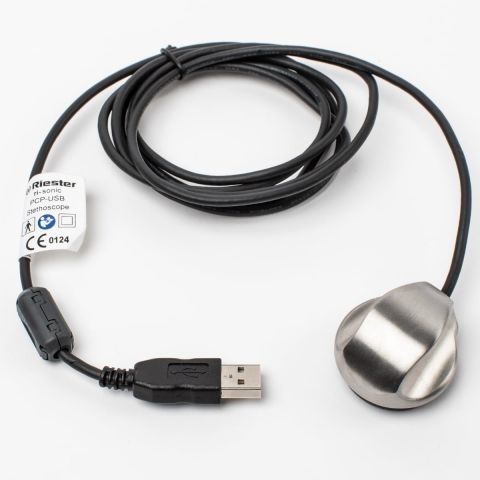
This image shows a Riester digital stethoscope, currently being tested for integration for use with Video Call for real-time remote patient monitoring.

Portable Digital Otoscope

The Portable Digital Otoscope is optimised for inspection of the auricle, the external auditory canal and the eardrum.

Here, the Portable Digital Otoscope is being used to examine the ear canal during a Video Call consultation.

Ultrasound

For detailed information about sharing an ultrasound image using Visionflex, please click here.


HPA medical carts and peripherals

HPA carts meet many health service needs, from technology and medication management to video telehealth, ICU, and tablet applications. These modular carts feature easily interchangeable components, allowing them to seamlessly adapt to any workflow or requirement. They can also be repurposed as your needs evolve. These carts can be paired with with hot-swappable batteries for ease of movement.

The cart can be used with a range of medical devices, to assist with remote diagnosis and review. Click here to find out more about compatible medical devices.

The following video demonstrates the use of Video Call on an HPA cart:


Was this article helpful?

Yes
No
Give feedback about this article

Related Articles

  • healthdirect Video Call integration with EMR systems
  • Examination cameras and scopes

Can't find what you're looking for?

Email support

or speak to the Video Call team on 1800 580 771


Knowledge Base Software powered by Helpjuice

Expand