Clinic name and Left Hand Side menu
Find out more about your clinic name and the available menu items in the LHS column of the clinic waiting area
The LHS (left hand side) menu column in the waiting area enables you to navigate to various sections of your clinic. This is where you can access the clinic Dashboard, Clinic Waiting Area and any meeting or group rooms set up for the clinic, if applicable. Clinic administrators will also have access to Apps, Reports and clinic configuration options.
The name of the clinic you are in will show at the top of the waiting area, to the right of the organisation name. If you have access to multiple clinics, click on the drop-down arrow next to the clinic name and select another clinic. See below for more information.
At the top of the Waiting Area you will see the organisation name and the name of the clinic.

Clicking on the drop-down arrow next to the clinic name shows you any other clinics you have access to, if applicable, and you can choose to select another clinic waiting.

Left Menu
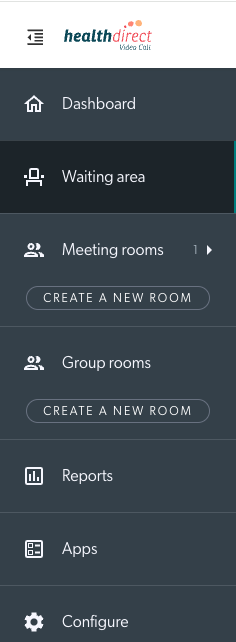
To the left of the organisation and clinic name, the LHS menu shows various options, depending on your role in the clinic. Team members will see Dashboard, Waiting Area, Meeting Rooms (if any are configured) and Group Rooms (if any are configured).
If you are a clinic administrator you will also see Reports, Apps and Configure buttons shown in this example. Team members (service providers) do not have access to the reporting and configuration options. Administrators also have access to Create Meeting and Group rooms (Create a new room button).
Users may also see Data collections if this option has been selected in permissions when they were invited to the clinic. We recommend admins do not select this option in the invitation box when inviting clinic members, unless the clinic has access to Devolved Local Recording.
User rooms
Video Call User Rooms are private rooms for individual team members and allow them to meet with any guest invited to their room. Video Call consultations with patients and clients are designed to take place in the Clinic Waiting Area, however User Rooms are available as an additional workflow. They are not used in the majority of workflows, hence are not shown in the example above. Click here for more information.

Waiting patients notification
The Waiting Area orange sidebar notification displays how many callers are waiting to be seen in the clinic. This indication includes callers who have been joined and put on hold, as well as callers transferred from other clinics.

These scenarios trigger the orange notification number:
| Scenario | Triggers notification? |
| Unanswered caller | YES |
| Cold transfer, unanswered | YES |
| Call answered, but host(s) have left the call | YES |
| Call in progress | NO |
| In-call on hold with host still in the call | NO |
| In-call on hold where host has left the call | YES |
| Warm transfer (host in call) | NO |
| Warm transfer (no host in call) | YES |
Collapse left menu
Clicking on the Menu icon at top left (highlighted in red) will collapse the left menu. This can be useful to save space on smaller screens. When collapsed you will only see the icons in view for ease of use and mobile device responsiveness and the number of waiting callers will remain displayed next to the waiting area icon.
